Introduction
A slow laptop is one of the most frustrating problems we face today.
Whether you’re working, studying, or browsing the internet, a laggy system can waste time and test your patience.
The good news?
Most slow laptop problems can be fixed with simple steps — no technical skills needed.
In this guide, we’ll walk you through 10 easy and must-know solutions to speed up your laptop and make it feel new again.
1. Restart Your Laptop (Simple but Effective)
If you haven’t restarted your laptop in a long time, background apps may be slowing it down.
A quick restart clears temporary files and enhances performance.
2. Uninstall Unnecessary Programs
Go to:
Windows → Settings → Apps → Installed apps
Remove software you don’t use:
- Trial programs
- Toolbars
- Duplicate apps
- Old games
This frees up storage and RAM.
3. Disable Startup Apps
Some apps start running automatically when you turn on your laptop.
To disable:
Task Manager → Startup Apps → Disable unwanted apps
Disable apps like:
- Spotify
- Zoom
- Adobe Updater
- Game launchers
Your laptop will boot much faster.
4. Check for Malware or Virus
A virus or malware can drastically reduce your laptop’s speed.
Use built-in Windows Defender or any trusted antivirus to run a full scan.
5. Clear Temporary Files
Temporary files accumulate over time.
To clear them:
Settings → Storage → Temporary Files → Remove
Or use Disk Cleanup.
6. Update Windows & Drivers
Outdated Windows versions or drivers may cause slow performance.
Go to:
Settings → Windows Update
Install all updates.
Then update drivers (especially graphics, network, and chipset).
7. Free Up Disk Space (Very Important)
If your storage is nearly full, your laptop will definitely slow down.
Delete:
- Old downloads
- Unneeded videos
- Duplicate photos
- Large files
Try to keep 20–30% free.
8. Add More RAM
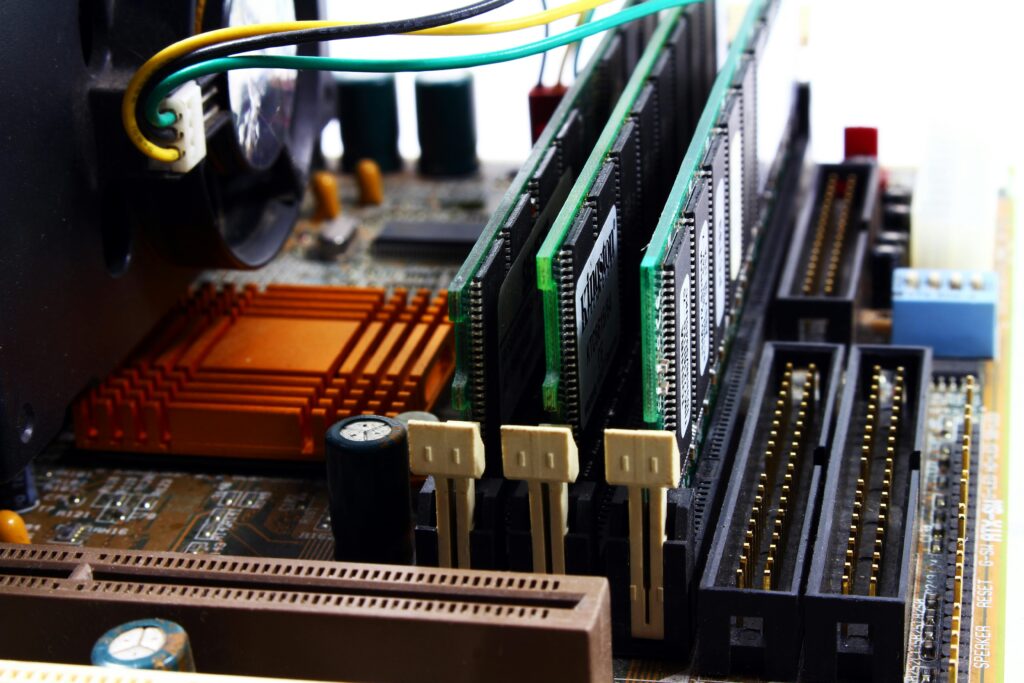
If your laptop has only 4GB RAM, upgrading to 8GB or 16GB can make a big difference, especially for multitasking.
9. Upgrade to SSD
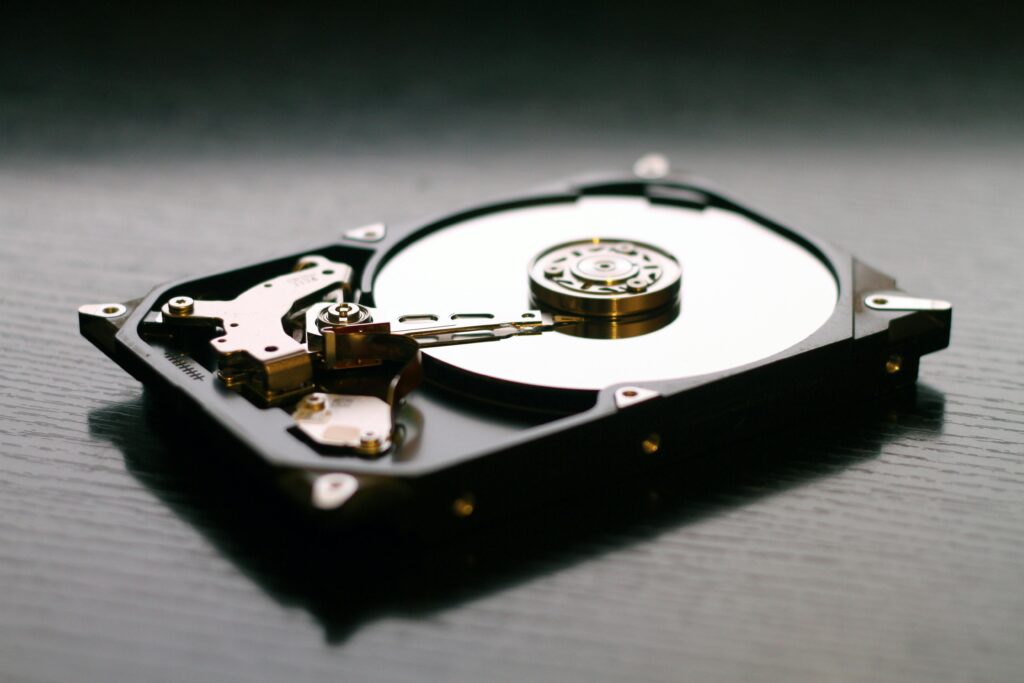
If your laptop still uses an HDD, switching to an SSD can improve speed by 5–10x.
Everything becomes faster:
- Booting
- Opening apps
- Copying files
- Browsing
This is the best upgrade for old laptops.
10. Reset Windows (If Nothing Works)
As a last resort, you can reset Windows without losing personal files:
Settings → System → Recovery → Reset this PC
Choose:
✔ Keep my files
✖ Remove apps and settings
This gives your laptop a fresh start.
Conclusion
A slow laptop doesn’t always mean it’s dying.
With the right steps, you can fix most issues at home and breathe new life into your device.
Try the above solutions one by one — your laptop will feel smoother, faster, and more responsive.
If you want guides on SSDs, RAM upgrades, or Windows optimizations, stay connected with mstknow — your must-know tech guide.
Link to a Microsoft help page:
https://support.microsoft.com